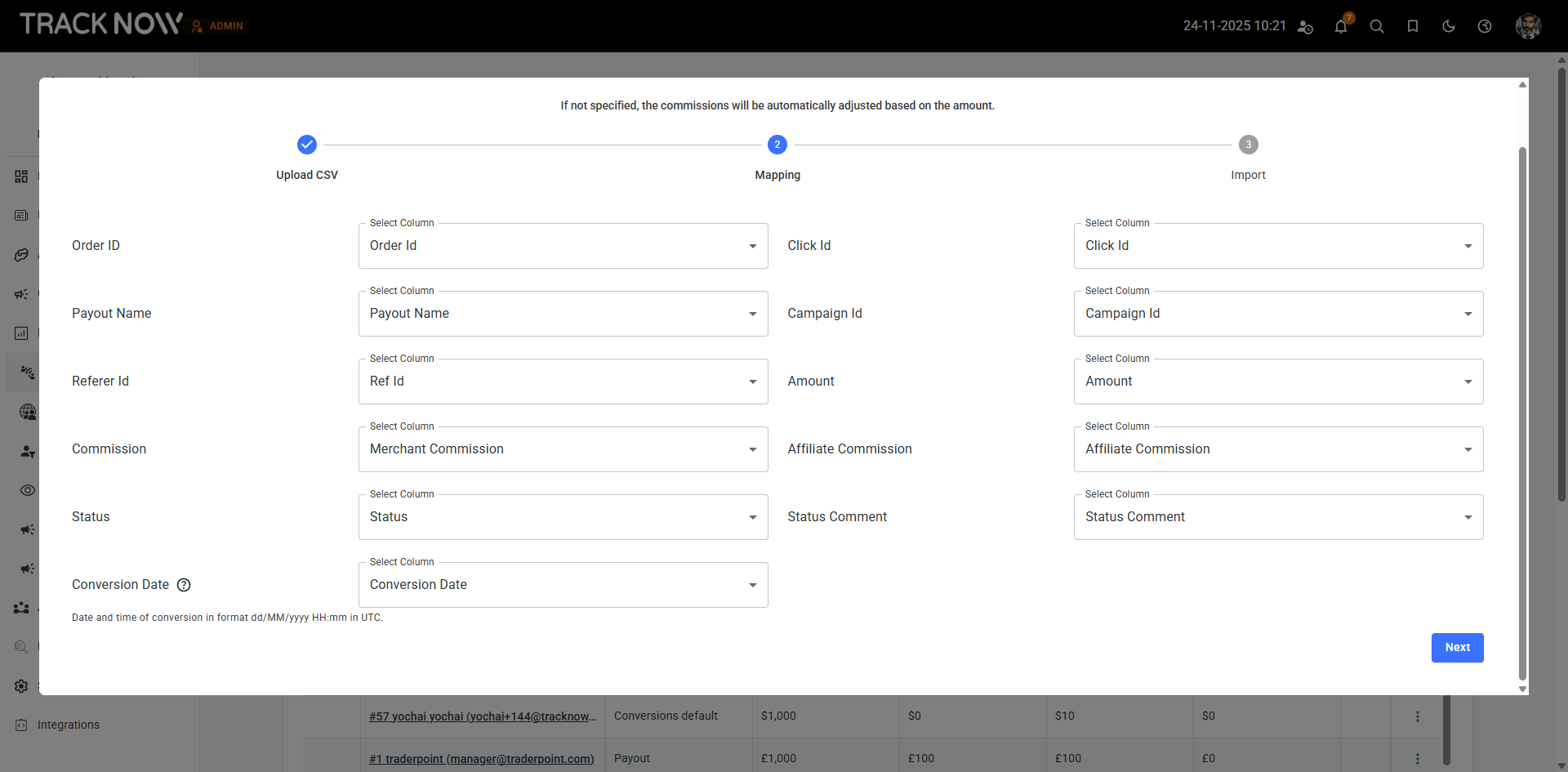
You can bulk-upload conversions by importing a CSV file using the Import button on the Conversions screen.
Navigate to Performance > Conversions > Import

Sample File
When you click the Import button, you can download a sample CSV file that shows the required format and the types of data you can include.
| Column | Description |
|---|---|
| Order Id | Include the conversion’s order ID if you have one. If you leave this field blank, the system will automatically generate a unique order ID. |
| Click Id | If available, include the click ID linked to this conversion. When a click ID is provided, you don’t need to fill in the Campaign ID or Ref ID columns, as that information is already contained within the click ID. |
| Payout Name | If you need a specific payout applied to this conversion, include the payout name exactly as it appears in Tracknow (Payout Title). When a payout name is provided, you don’t need to fill in the Merchant Commission or Affiliate Commission columns, as the system will automatically use the payout’s configured settings. |
| Campaign Id | Specify the ID of the campaign (as indicated on Tracknow) that this conversion should be added under. (No need to fill out if you provided a click ID for that conversion). |
| Ref Id | Specify the ID of the affiliate (as indicated on Tracknow) that this conversion should be added under. (No need to fill out if you provided a click ID for that conversion). |
| Amount | Enter the amount for this conversion. When the payout commission is percentage-based, the system will calculate the commission based on this value. |
| Merchant Commission | If you are a network and did not specify a Payout Name for a conversion, you can enter the commission rate manually. The Merchant Commission represents the amount you earned from the brand you promoted for this conversion. Your net earnings are calculated by subtracting the affiliate commission from the merchant commission. |
| Affiliate Commission | If you did not specify a Payout Name for the conversion, you can enter the affiliate’s commission amount manually here. |
| Status | The status in which the conversion will be imported (APPROVED, DENIED, TEST, REVISION, PENDING, HOLD) |
| Status Comment | You can add a comment to the status. |
| Conversion Date | Enter the date of the conversion using the dd/MM/yyyy HH:mm format in UTC. If no date is provided, the system will automatically assign the date and time of the import. |
Mapping
When you upload your file, you’ll have the option to map the columns of your file to the corresponding Tracknow columns if you decided to upload a file that does not have the same column titles as the sample CSV file.
Select the column in your file that represents each field in the mapping list. Select ‘Not Found’ for unnecessary columns.